Settings
Use Settings to choose which Revit display modes stay on when you print and where ProSheets appears in the Revit ribbon.
To open Settings, go to the Create tab and click the gear icon at the bottom right, next to Back. Click the gear again to return to the Create tab.
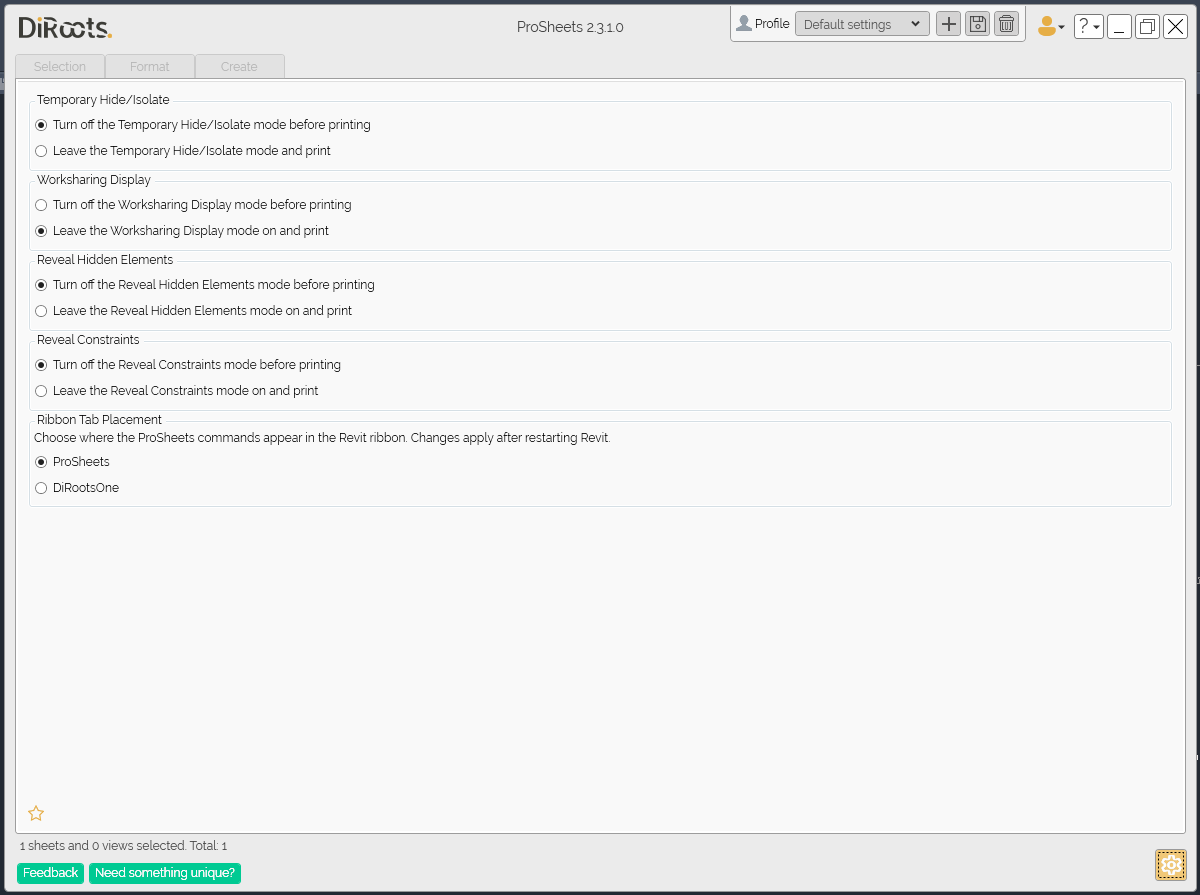
Table of contents
Print options
For each display mode below, choose whether ProSheets turns it off before printing or leaves it on.
- Temporary Hide/Isolate
- Worksharing Display
- Reveal Hidden Elements
- Reveal Constraints
Ribbon tab placement
- ProSheets places the commands in their own tab.
- DiRootsOne places the commands in the DiRootsOne tab.
Restart Revit to apply the change.